Write a descriptive name. This will be the name that users will see when choosing a form.

Select which site, category and/or product type it will be assigned to. This step is really important, because if the records aren’t assigned to these fields, they won’t be visible for those roles that have viewing limitations.

“Requires verification to close” → this feature won’t allow the record to be closed until a verifying user signs it.

“Hide ID in PDF” → turn it on if you don’t want the automatic Solved ID to appear in the report that’s downloaded as a PDF.

Write a general description of the record, if needed. This will be visible in the PDF.

Change the cover photo. It’s a visual aid that will really help you when you’re looking for the record you want to complete.

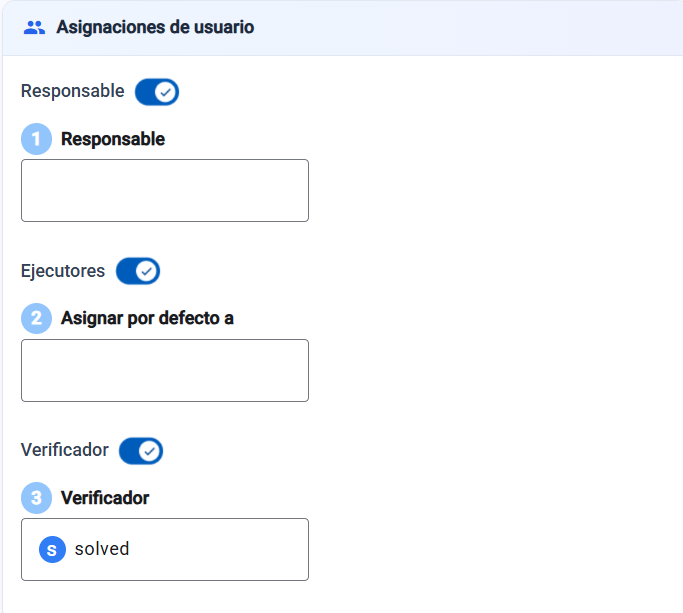
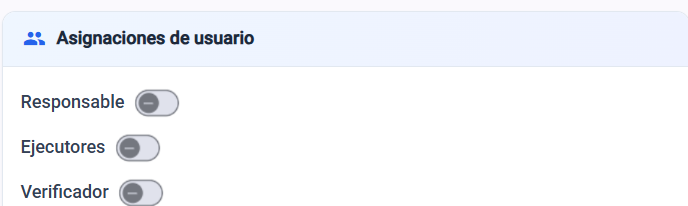
You can assign the record to one or more users by default as responsible, executor(s) or verifier. This way, when the record is opened, they’ll get a notification that they have X record assigned. If it’s not needed, it can be turned off.
You can set which data from the record you want to appear in the PDF report.
8.1. Record → registration / record code
8.2. Review → record version
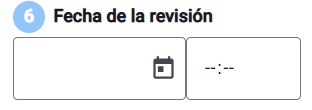
8.3. Review date → version date
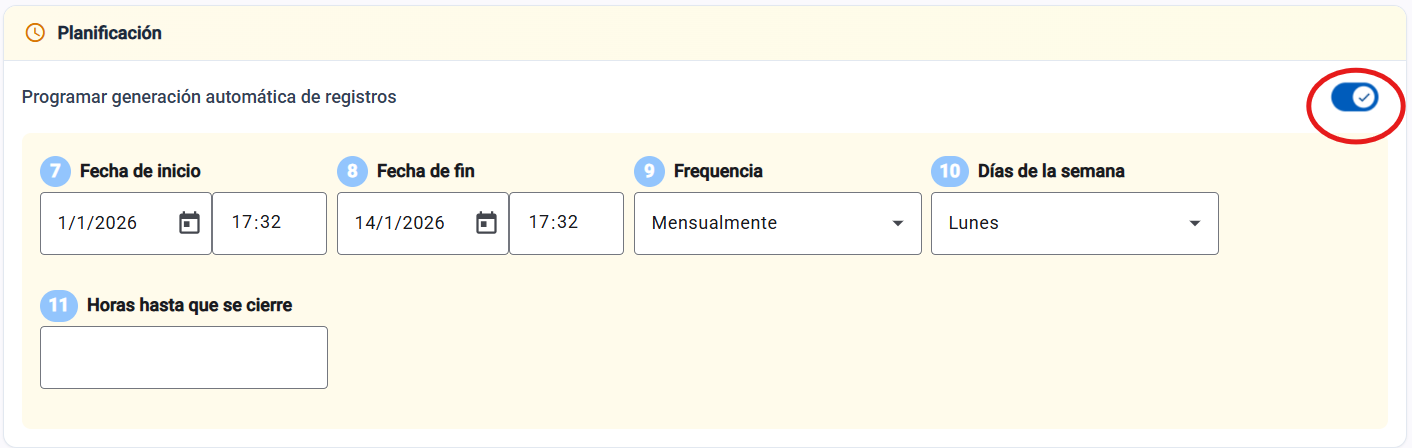
You can automatically schedule records when they recur daily, monthly, or even yearly. Here’s how.
To set up several identical controls at once, you can create control combinations, which will save you time when creating and editing, if needed. Here’s how to do it.

Add the section and write its title.

Click the arrow so you can start creating the controls for this section.

You have two options: either add controls one by one, or add several controls at once.
Set the name of the control

Write a short description, if needed. This description won’t appear in the PDF report when it’s downloaded.

You can add a descriptive photo, if needed.

Select what type of control you want it to be. Here I explain each of them and how to set them up.

Once you’ve finished setting up the controls, click the “Finish” button.

Save the record

Publish the record when it’s ready to be used.
Interesting facts
You can see a preview of the record before publishing it.
You can duplicate the record → very useful when you have to make several similar ones, where only small details are changed, since it saves you a lot of time.

To be able to add several controls at once, it’s important that the options are separated by a ;
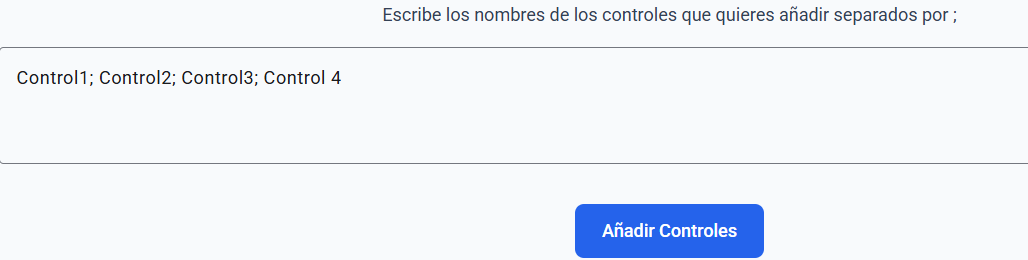
The combination of controls is really useful when you use the addition of several controls.