When changes are made to an incident template —whether new fields have been added, structures modified, or some fix has been applied by development— it's possible that already created incidents won't automatically show those updates. To avoid inconsistencies and make sure an incident uses the latest version of its template, you can sync it manually.
Syncing helps when:
Fields have been added or updated in a category's template.
A mistake in the design or logic of a template has been fixed.
An old incident needs to match the new structure to stay consistent.
A field doesn't show up right or doesn't load like it should.
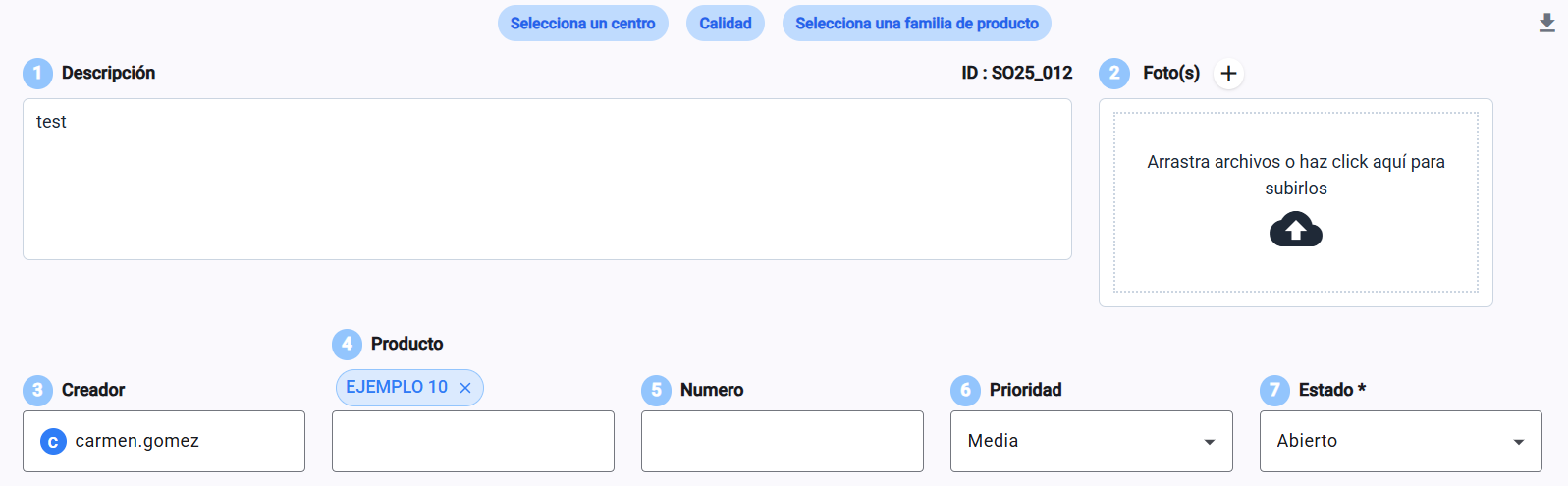
Go to the incident details specifically

Check that the changes haven't been made (in this case a new “Client” field)
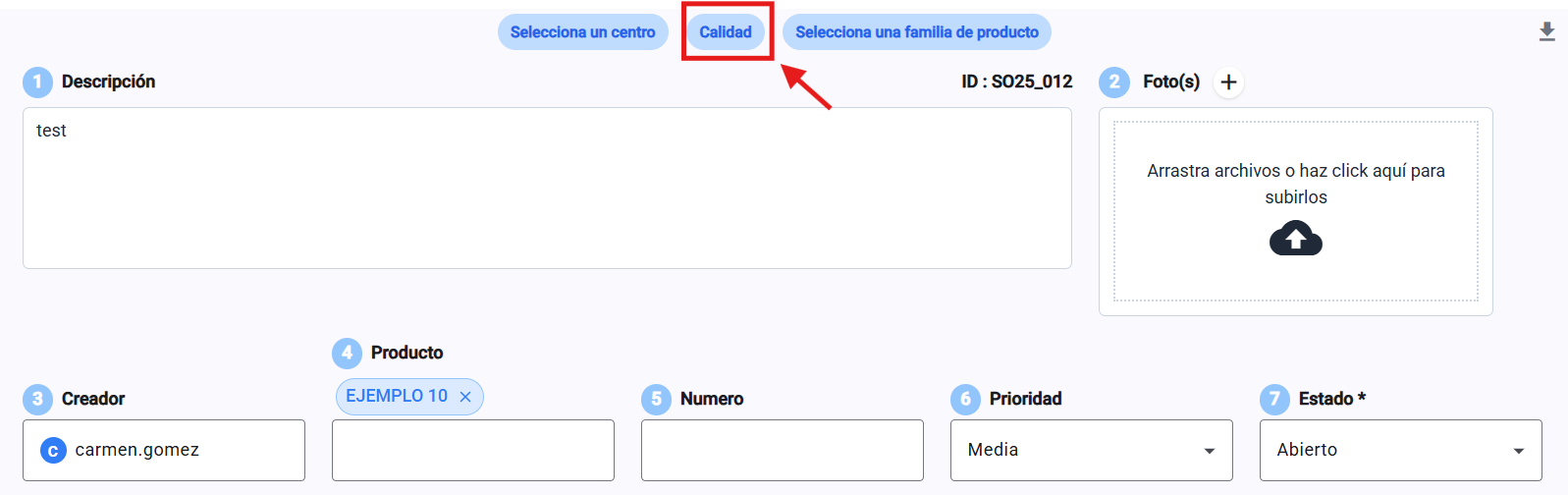
Tap on the category that's already selected
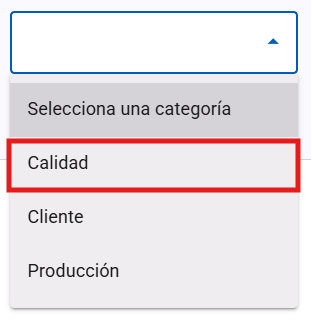
Select it again
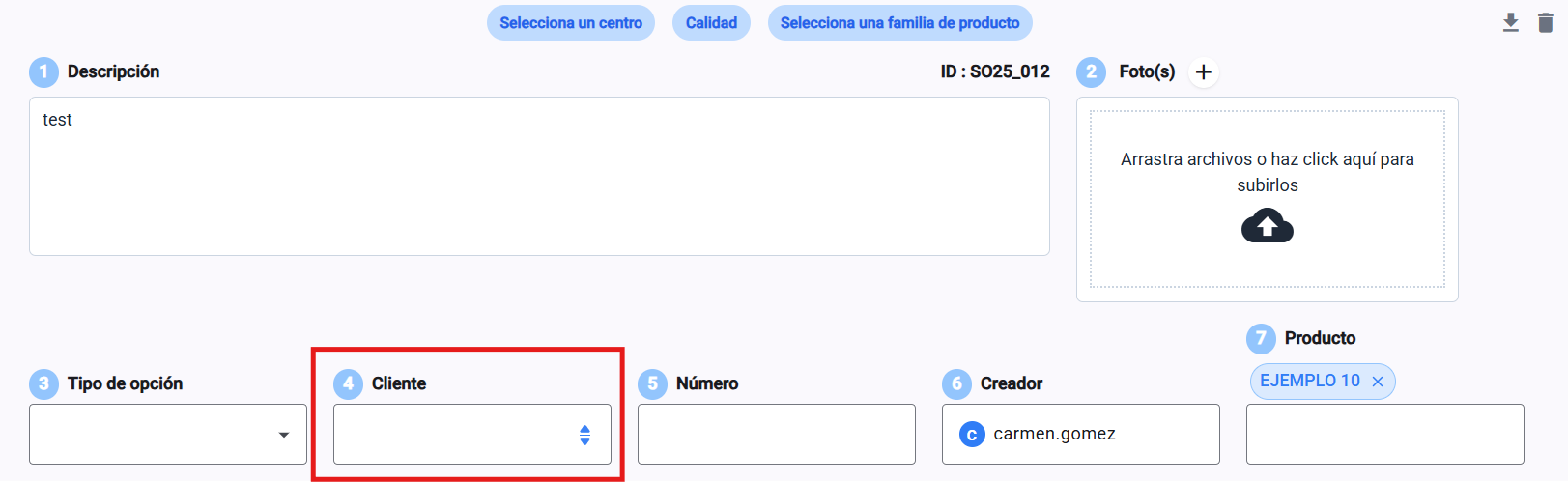
Make sure the update was done right
Syncing must be done individually for each case. This lets you control which cases need to be updated without affecting historical records that should keep their original structure.
If any field with relevant info for that case has been removed, it will also disappear.
It doesn't change the info that's already saved, but updates the available structure from that moment on.