On the platform, it’s possible to automate the estimated closing date for issues to make it easier to plan and keep track of resolution times. This feature lets the system automatically assign an estimated closing date when you create an issue, based on criteria you define ahead of time, like issue type, category, or priority.
Go to settings
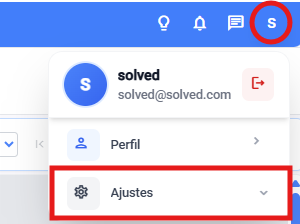
Open the automatic closing date configuration module
a. From general settings
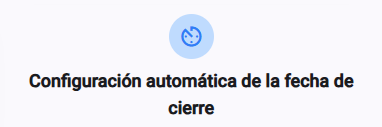
b. Or from the dropdown on the main view
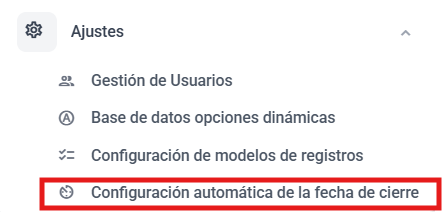
Create a combination of center (plant), category, and/or priority.
There are three options for setting an automatic closing date. You can choose how many fields you want, and the estimated closing date will depend on those combinations:
- One field only
- Two fields
- Three fields
Depending on the combination you set, the platform will automatically close the issue once that condition is met.
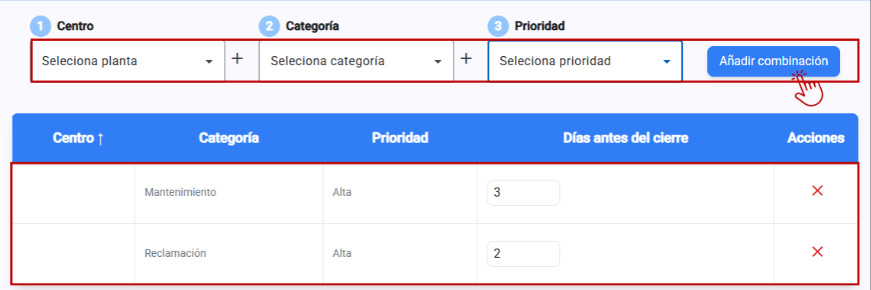
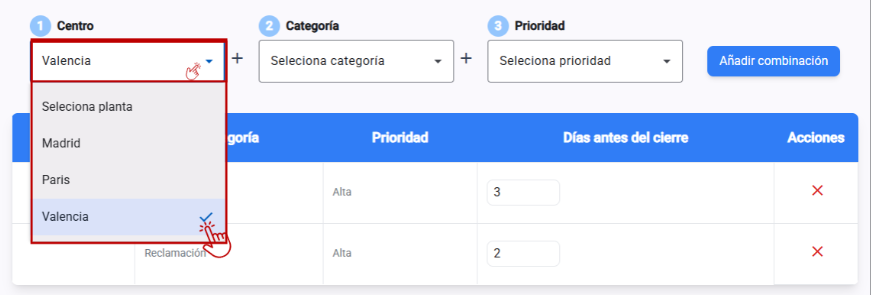
Choose the center you want it to be linked to. It's not required to do this step, as the combination can just be for category and/or its priority
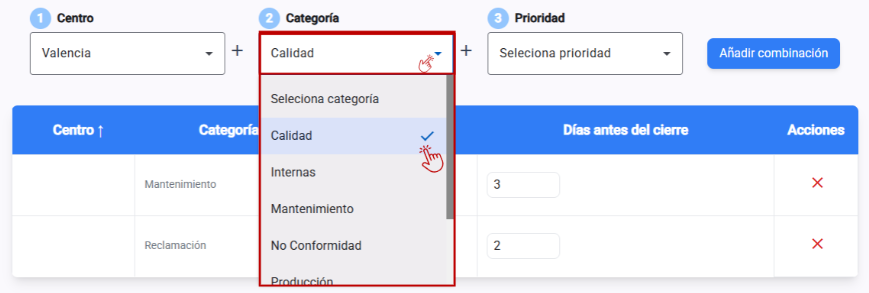
Choose the incident category you want it to be linked to. It's not required, since the combination can just be for the center and/or its priority, no matter which category you pick.
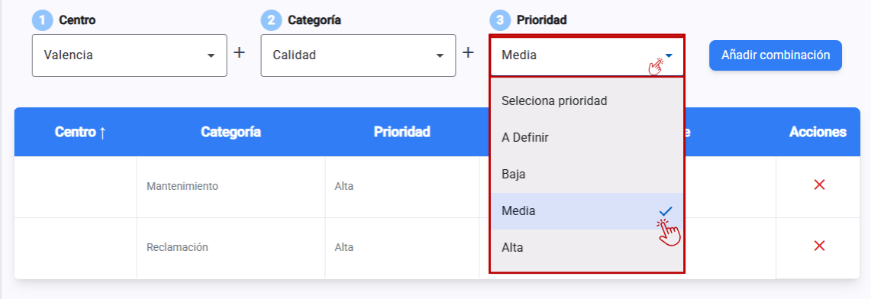
Choose the priority you want it to be linked to. It's not required, since the combination can just be for the center and/or category, no matter which priority the incident is.
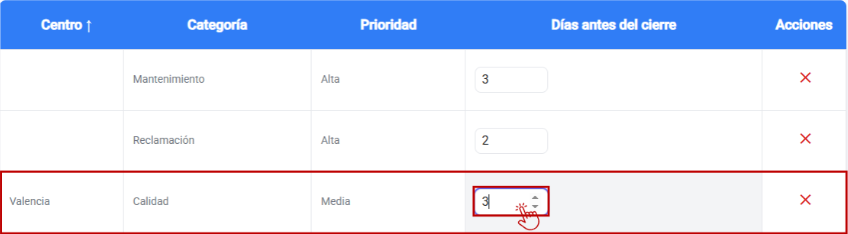
When you have the combination ready, add the combination along with the rest

Set the days you want it to stay open from its creation day until it's closed
Save the changes you've made
✅ Benefits
Time savings when creating incidents.
Consistency in resolution deadlines.
Better tracking and control of times → a notification is sent to all users assigned to that incident.
Makes prioritizing and managing the work team easier.
💡Useful notes
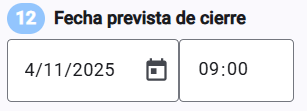
In the “Expected closing date” field, the date when it will automatically close will show up.
You can have different settings for each incident category