📌 This article is intended exclusively for the Solved internal team. Customers do not have access to incident template management
Go to settings
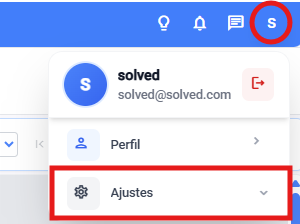
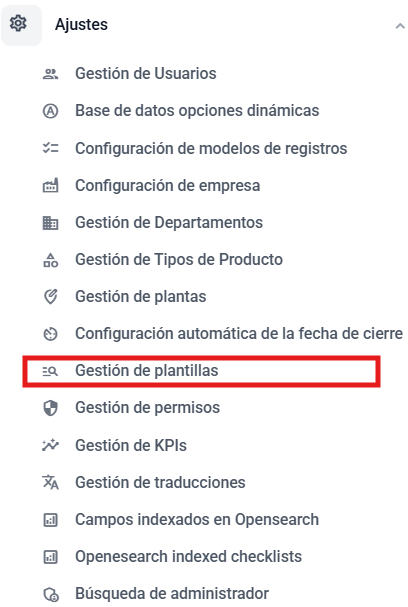
Enter the template management module
a. From general settings

b. Or from the dropdown on the main view
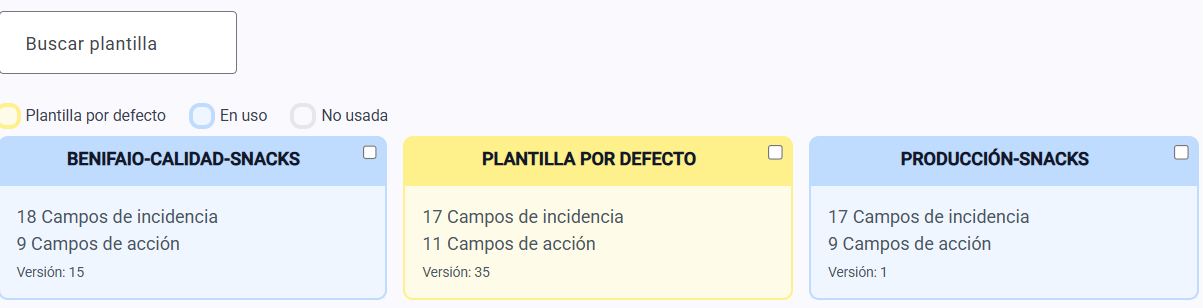
Choose the template where you want to sync the database
Once you’re in, find the field you need to sync it to
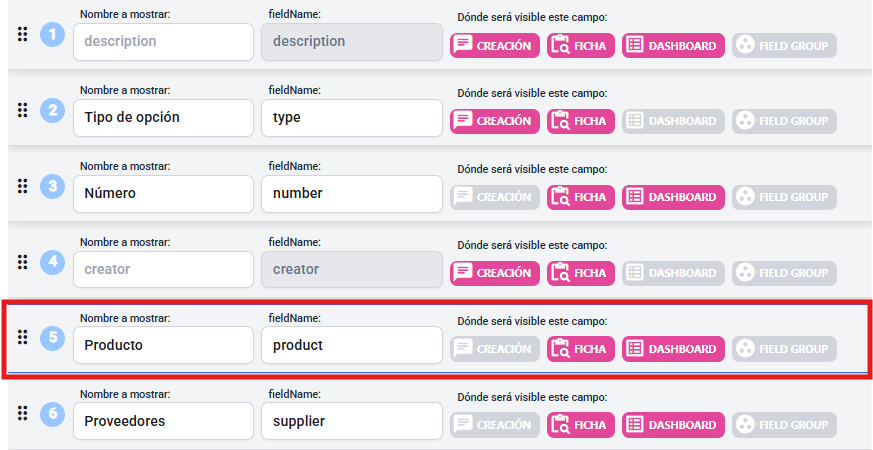
To be able to edit the field, click the pencil icon to the right

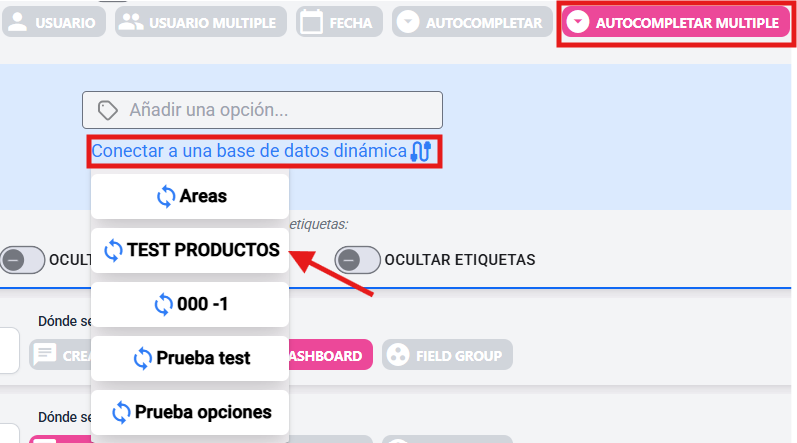
The field must be in “Multi autocomplete” mode. Select a database from the “Connect to a dynamic database” button
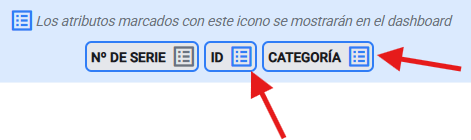
Pick which attributes you want to show in the main list in the incidents module
Save your configuration
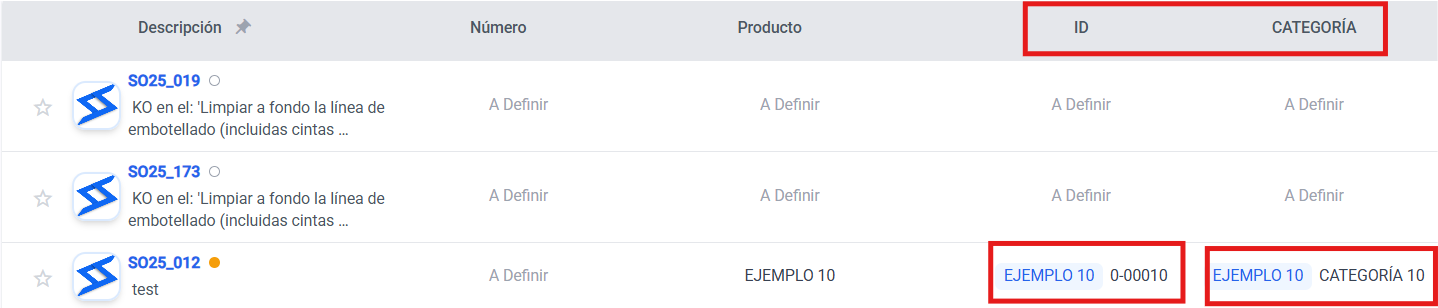
Check that the attributes you picked show up in the main list (dashboard)
💡 Tip: Always check that the database is complete and up to date before syncing it with the template. Any changes made to the database will automatically be reflected in all new issues that use that field, which lets you update the information quickly and easily. Old issues will not be affected, so you keep an accurate history of the data you previously recorded.