Go to settings
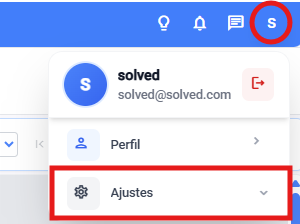
Go into the template management module
a. From general settings
b. Or from the dropdown in the main view
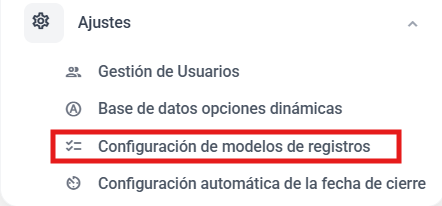
Select the entry where you want to sync the database

Once you're in, find the section where the database should be connected

Go into the section, open the control and hit “More” → that way, you can sync the database
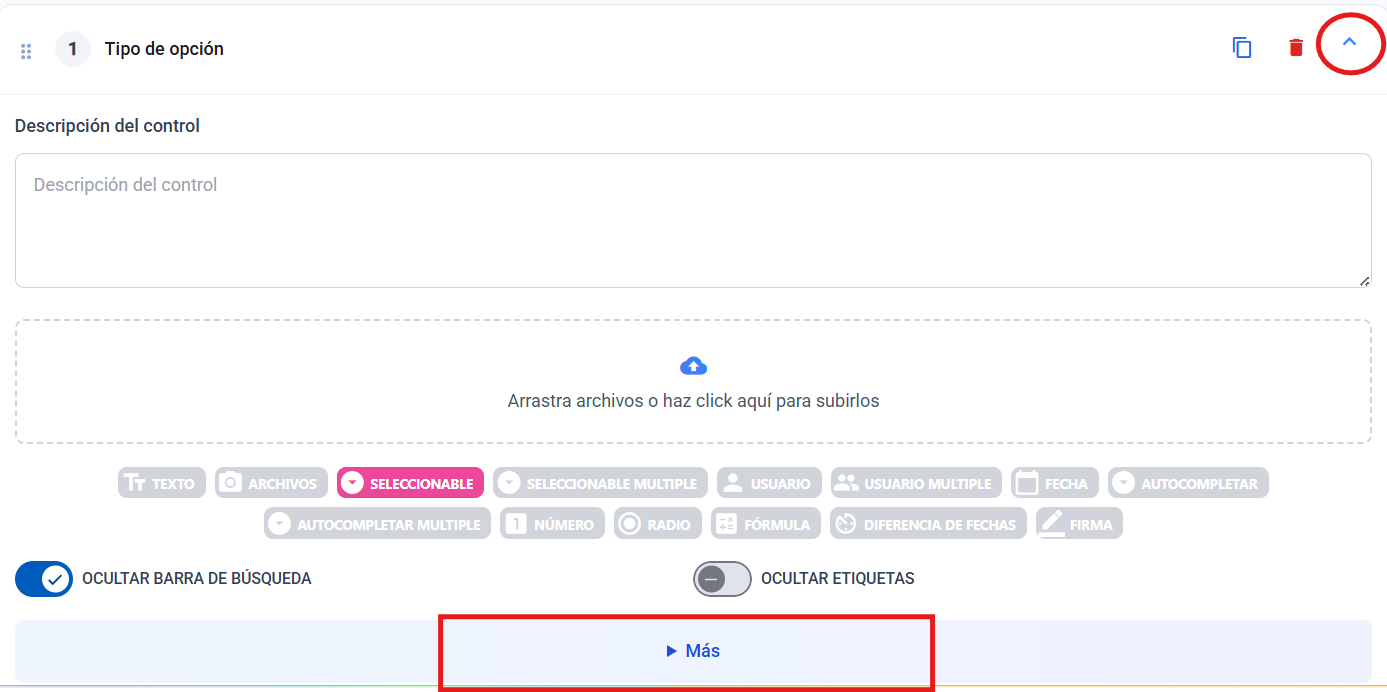
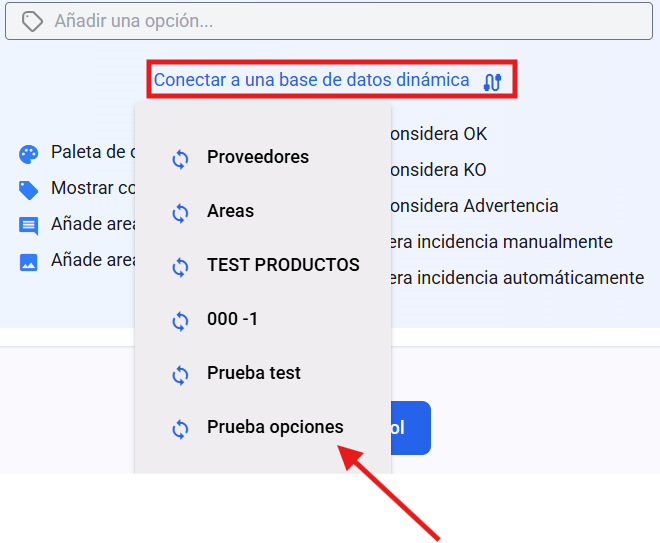
Pick a database using the “Connect to a dynamic database” button
Save the settings

💡 Tip: Always make sure the database is complete and up to date before syncing it with the template. Any change you make to the database will automatically show up in all new records that use that field, which lets you update information quickly and easily. Old records won't be affected, so you'll keep an accurate history of all previously registered data.
⚠IMPORTANT DATA⚠
Always check that the incident field is a Selectable / Multi-select / Autocomplete / Multi-autocomplete.

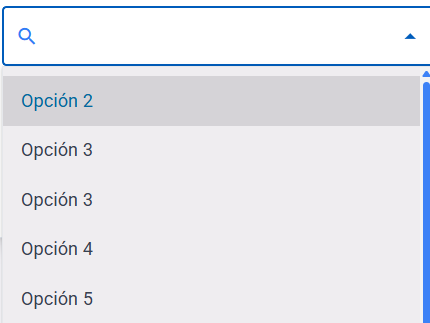
Choose if you want to hide the search bar or have them show up as tags.

Search bar
Options as tags