If you need to use Solved in another language, don't use Google Chrome's automatic translation feature, because it might break how the platform works.
If you click on "Translate this page" in your browser, you might:
The interface may not load correctly
Some features might not work
To safely switch Solved's language without any issues, follow these steps:
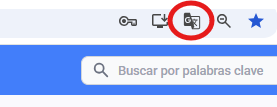
Go to the platform, and in the address bar, click the translation icon
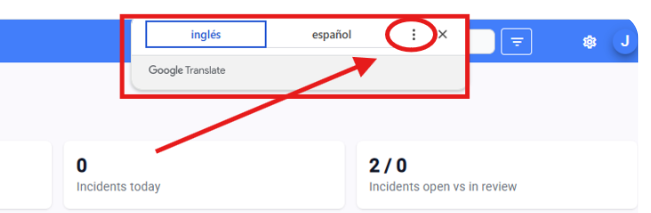
Choose the three-dot settings on Google's auto tab.
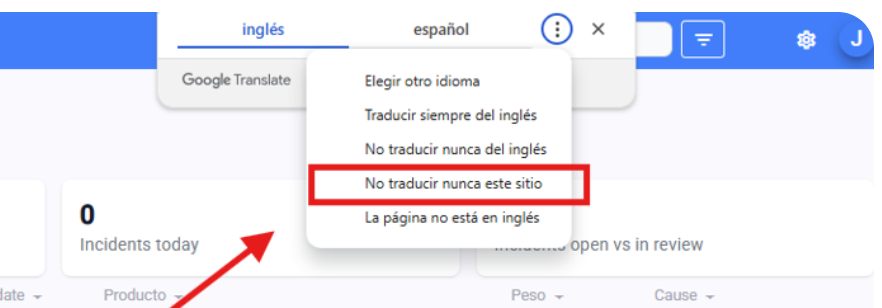
Select the option “Never translate this site”
Once we’ve canceled the automatic translation, we can translate the APP properly.
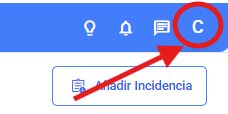
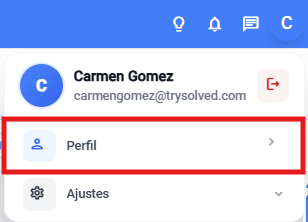
Click on your profile icon
You’ll find it in the top right corner of the screen.
Select the “Profile” module
Scroll down and open the Language options
In the dropdown menu, at the very bottom you'll see an option to change the language.
Click and pick the language you want.
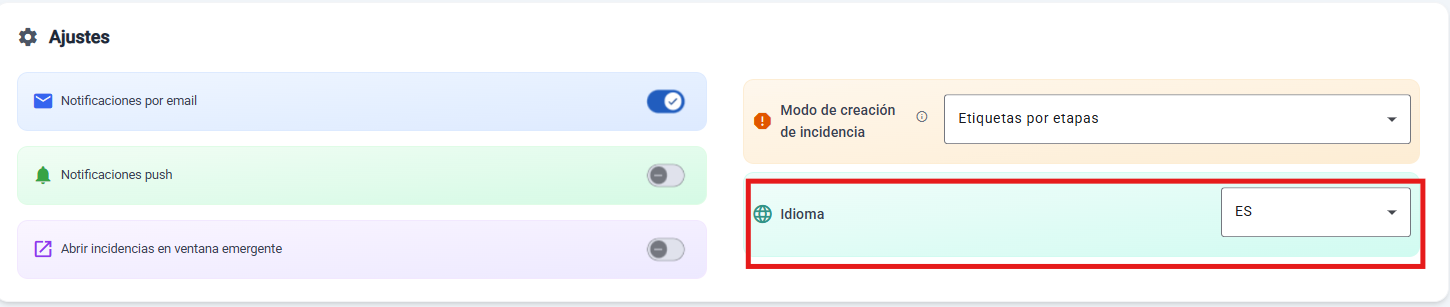
The platform will update automatically
Once you select the language from settings, the whole system will adjust automatically to the chosen language, no worries.